Shopify metafields: how to set them up and fill them at scale
Metafields are where a Shopify store keeps the product facts its standard fields don’t cover: material, dimensions, care, compatibility and anything else shoppers filter and ask on. What metafields are, how to pick the right type, how to add them, how category metafields and metaobjects fit in, and how to fill thousands of them without guessing.

Mathias JensenCEO & founder
In short: metafields are custom fields for the facts Shopify’s standard fields don’t cover. Define each one once, with the type that matches how the value will be used, and it appears on every product. Use category metafields where Shopify’s taxonomy offers them, metaobjects for content you reuse, and connect them to your theme and filters. Filling them on thousands of products is the real work, and that’s where a confidence bar per field keeps the data trustworthy.
What Shopify metafields are
Shopify’s standard product fields cover the basics: title, description, price, SKU, barcode, weight and media. Everything else lives in metafields: custom fields you define once and then fill on every product, variant or collection.
- Each metafield has a name, a namespace and key such as
custom.material, and a type. - A definition makes the field appear on every product in the admin.
- Themes, filters, apps and sales channels can all read them.
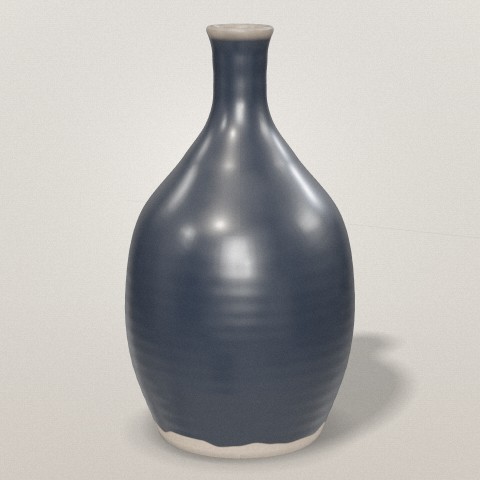
The Material metafield, custom.material, set to Stoneware
Pick the type before the value
The type decides what a field can hold, and what your filters and theme can do with it. Choose it for how the value will be used, not for how the supplier sent it. Typical fields for a ceramics store:
| Field | Type | Example | Good for |
|---|---|---|---|
| Material | Choice list | Stoneware | Filters, where only set values are allowed |
| Height | Measurement | 32 cm | Numbers with a unit that can be compared |
| Capacity | Measurement | 350 ml | Volumes, weights and sizes |
| Watertight | True or false | Yes | Yes or no facts, and filter toggles |
| Glaze color | Choice list | Cobalt | Color filters with fixed names |
| Care | Single line text | Hand wash only | Short facts that vary freely |
| Story | Rich text | Two short paragraphs | Longer formatted content on the page |
| Size guide | Reference | A page or file | Content you reuse across products |
Other types include URL, number, date, color and JSON. Pick measurements over text for anything with a unit, and choice lists over text for anything shoppers filter on. A page reference is how Shopify’s own tutorial adds a size chart to product pages.
How to add a metafield in Shopify
- In the Shopify admin, open Settings and the metafields section, and choose Products.
- Click Add definition and give the field a clear name, such as Material.
- Keep the suggested namespace and key, or set your own, such as
custom.material. Use the same key in every store. - Choose the type, and whether the field holds one value or a list.
- Add validation: preset choices for a choice list, a unit for a measurement, minimum and maximum values for numbers.
- Save. The field now appears on every product page in the admin, ready to fill one by one, in the bulk editor or by CSV import.
Do the same for variants when a fact differs per variant, such as the capacity of each size.
Category metafields and the product taxonomy
When you set a product’s category from Shopify’s standard product taxonomy, Shopify suggests category metafields for it, such as color, size, material or age group. Their values come from a shared, standardized list, so “navy” and “dark blue” don’t become two different filters. See product attributes for which attributes each kind of product needs.
- Set the product category on every product first.
- Use category metafields where they exist, and custom metafields for the rest.
- Standardized values carry over to filters and sales channels.
For how categories work, how they differ from product types and how to categorize a whole catalog, see Shopify product taxonomy.
Metaobjects: entries you reuse across products
A metaobject is a structured entry with its own fields that many products can point to. Define a Material metaobject with a name, a care text and an image once, and every stoneware product references the same entry through a metafield. Change the care text, and every product page that uses it updates.
- Good for size charts, materials, designers and ingredient lists.
- Link them to products with a metaobject reference metafield.
- Translate them once, in every language you sell in.
Show metafields in your theme and filters
- Product pages. In the theme editor of an Online Store 2.0 theme, connect a block to a metafield as a dynamic source, such as a specifications table or a care text. See the Shopify product page for the steps.
- Filters. In the Search & Discovery app, add filters based on product and variant metafields, including category metafields. See Shopify filters.
- Collections. Use metafields in collection conditions, such as every vase with the material stoneware, so products join the right collections on their own. See Shopify collections.
- Search and AI assistants. Facts stored as structured fields can appear in your page, your structured data and your product feeds alike. See generative engine optimization.
Fill them at scale, with a confidence bar per field
Defining a metafield takes a minute. Filling it on thousands of products is the real work, and the main reason brands add a PIM to Shopify. Covada researches each product from your catalog, supplier sheets, product photos and the web, fills your metafields with the right type and unit, and shows a confidence score and the reasoning for every value. Set a threshold per field: lower for descriptive fields like room or style, higher for facts a buyer relies on, like watertight. Values below the bar wait for review instead of going live.
- Descriptive fields, such as room or style: 70
- Measurements, such as height or opening: 80
- Claims a buyer relies on, such as watertight: 90
Confidence thresholds per metafield, with a Watertight suggestion at 62 held back under its threshold of 90.
Settings, Products, Metafields: a confidence threshold for each metafield. Watertight is set to 90. Suggestions below the threshold wait for review instead of going live.
Pending suggestion · Watertight
0 of 1 suggestions pass. 1 wait for review.
“It has saved us a considerable amount of time and given us product data we otherwise wouldn’t have had the resources to put in place.”
Frequently asked questions
What are metafields in Shopify?
Metafields are custom fields that store extra information on products, variants, collections, customers, orders and other resources. Each has a namespace and key, such as custom.material, and a type that decides what it can hold.
How do I add a metafield to products in Shopify?
In the Shopify admin, open Settings and the metafields section, choose Products and add a definition with a name, a namespace and key, a type and any validation. The field then appears on every product page in the admin, where you fill it in, or in bulk with the bulk editor or a CSV import.
What is the difference between metafields and metaobjects?
A metafield is one value on one resource, such as the material of a product. A metaobject is a reusable entry with its own fields, such as a size chart or a material with care instructions, that many products can reference through a metafield.
What are category metafields?
Category metafields are standard attributes, such as color, size or material, that Shopify suggests from its product taxonomy once you set a product’s category. Their values are standardized, which makes them useful for filters and for sales channels.
Can I use metafields as filters in my Shopify store?
Yes. With Shopify’s Search & Discovery app, you can add filters based on product and variant metafields of supported types, including category metafields.